> ## Documentation Index
> Fetch the complete documentation index at: https://docs.saletides.com/llms.txt
> Use this file to discover all available pages before exploring further.
# Orders Overview
> Understand your WooCommerce orders with detailed analytics, charts, and breakdowns.
 ## What the Orders section shows
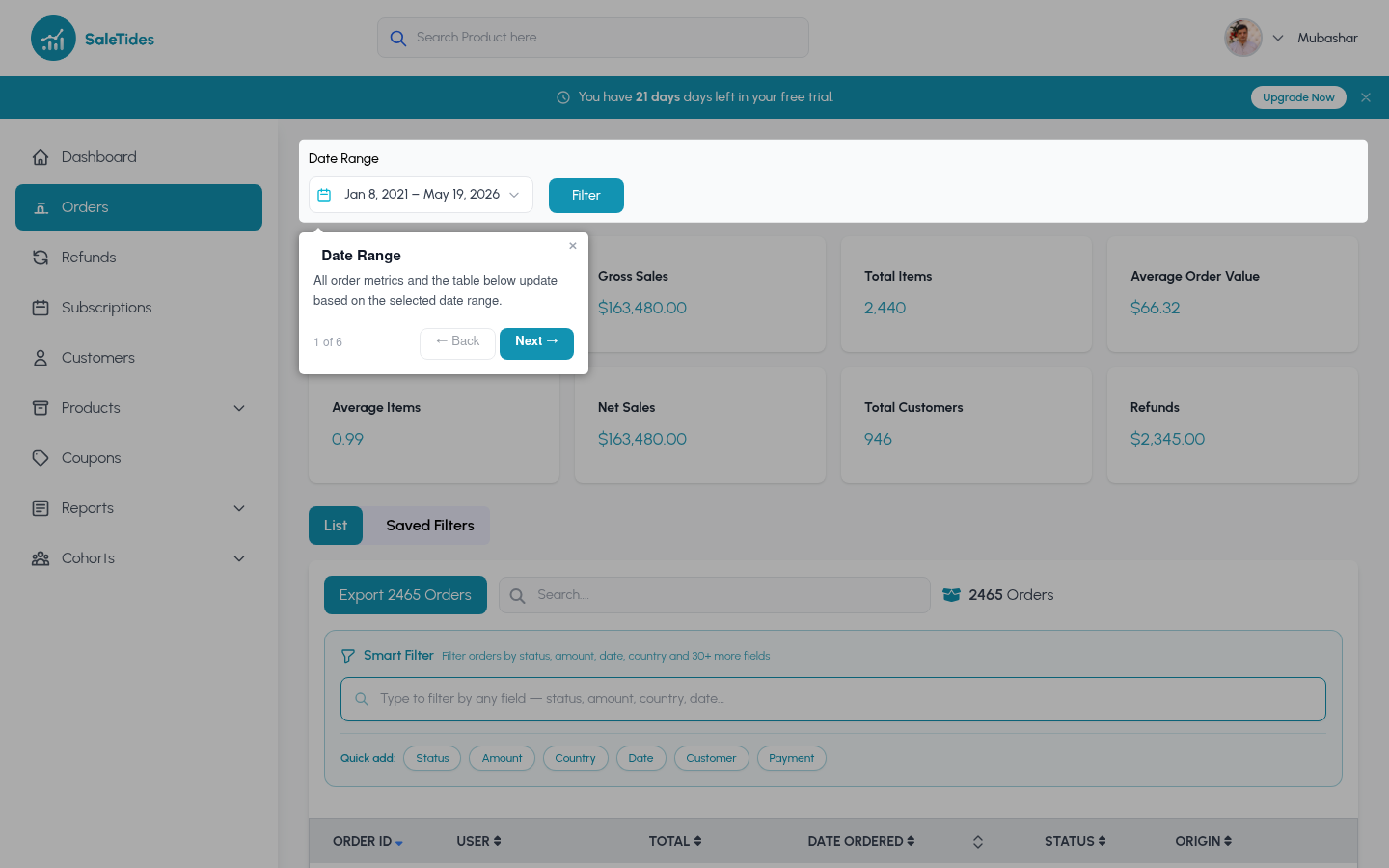
The **Orders** section gives you a complete view of every order your store has received, split into two views:
A searchable, filterable table of every order — click any row to see the full order detail
Aggregated analytics and charts — trends, distributions, and breakdowns
## Key metrics
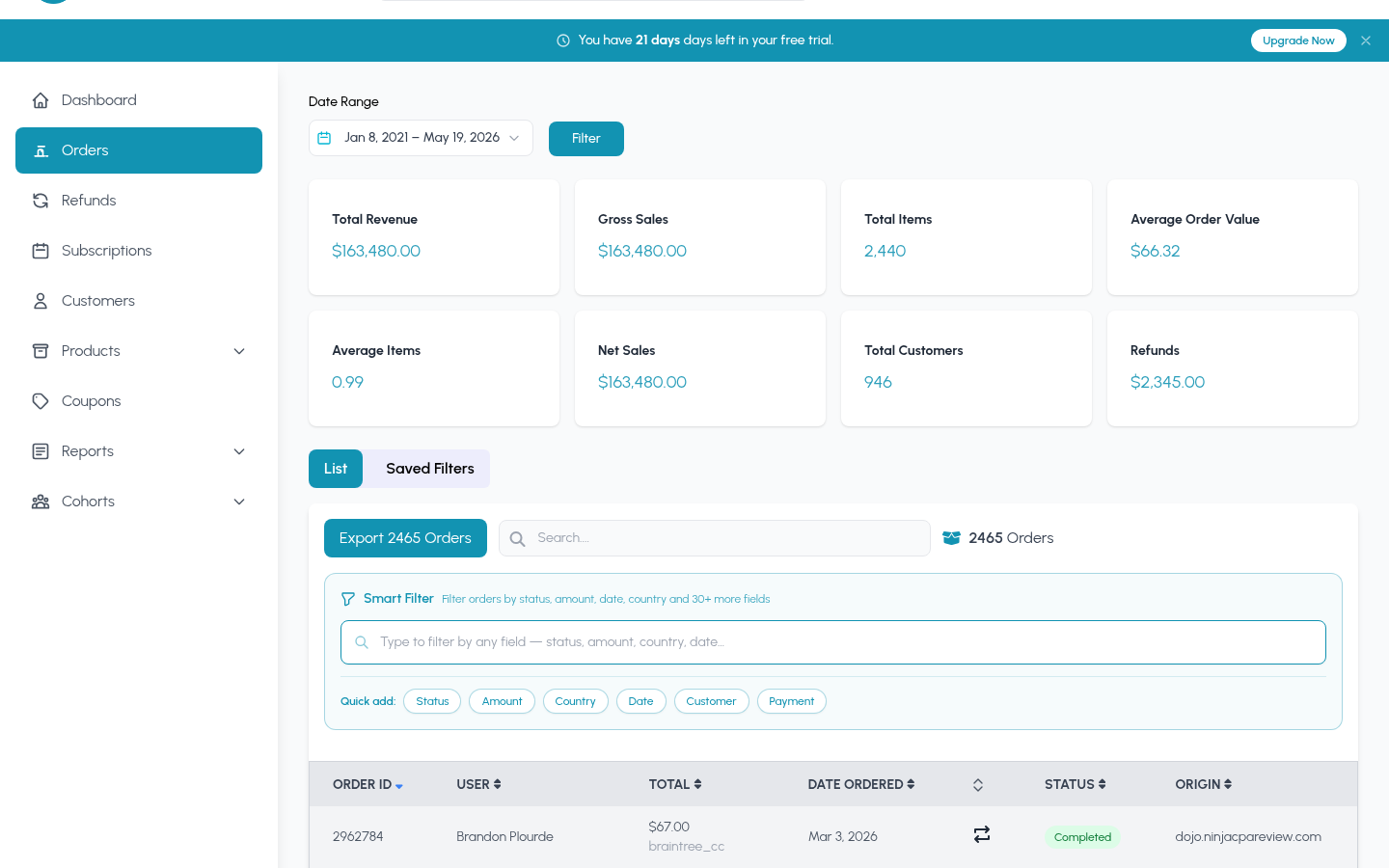
These four metrics appear at the top of every orders view:
| Metric | What it measures |
| ----------------------- | --------------------------------------------- |
| **Total Orders** | Number of orders in the selected date range |
| **Total Revenue** | Gross revenue before refunds |
| **Average Order Value** | Revenue ÷ order count |
| **Repeat Rate** | % of orders from customers who ordered before |
## Orders list
## What the Orders section shows
The **Orders** section gives you a complete view of every order your store has received, split into two views:
A searchable, filterable table of every order — click any row to see the full order detail
Aggregated analytics and charts — trends, distributions, and breakdowns
## Key metrics
These four metrics appear at the top of every orders view:
| Metric | What it measures |
| ----------------------- | --------------------------------------------- |
| **Total Orders** | Number of orders in the selected date range |
| **Total Revenue** | Gross revenue before refunds |
| **Average Order Value** | Revenue ÷ order count |
| **Repeat Rate** | % of orders from customers who ordered before |
## Orders list
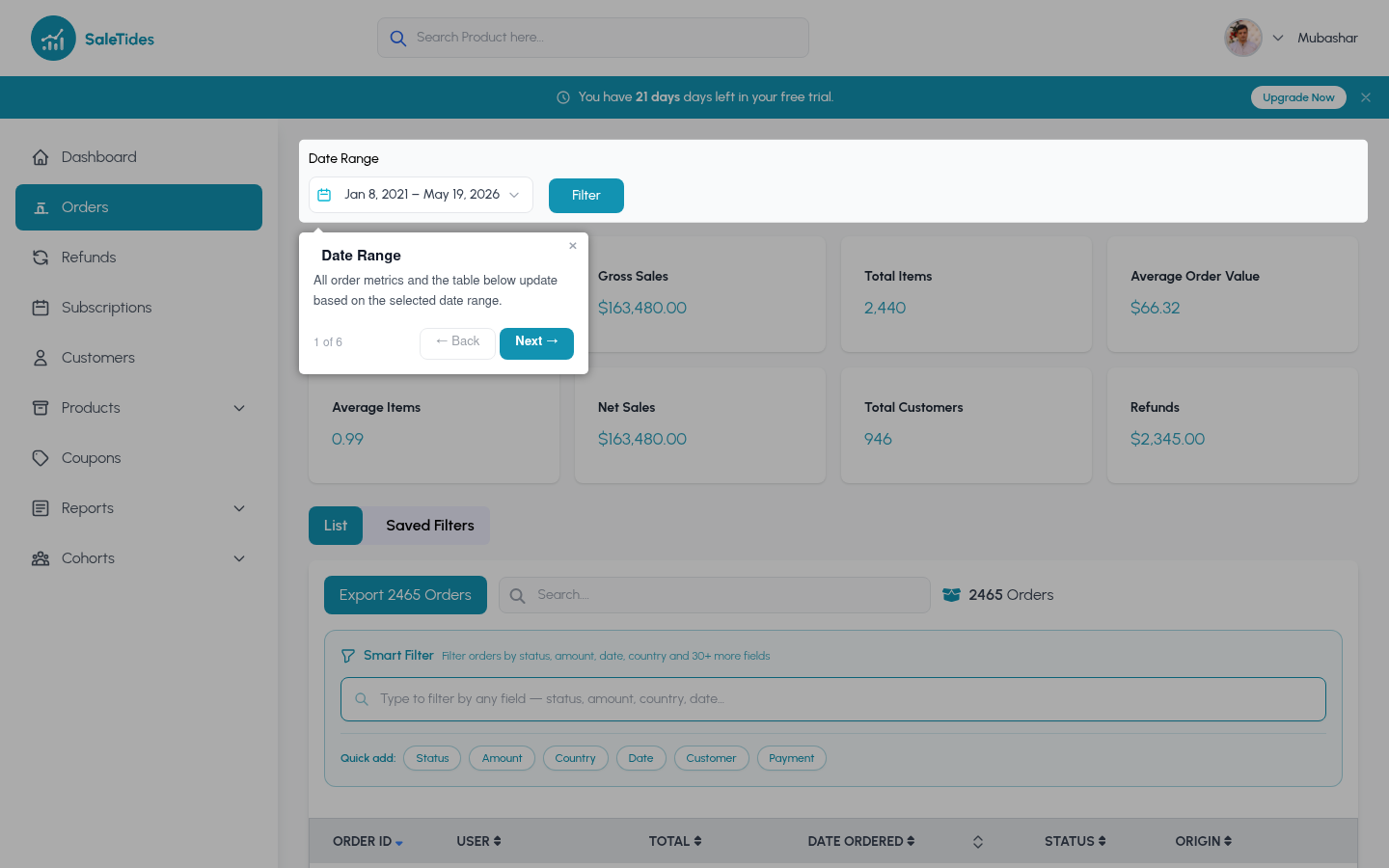 The orders table shows every order with: order number, date, customer, status, payment method, item count, and total.
### Searching
Use the search bar to find orders by order number, customer name, or email address.
### Filtering
Filter to specific WooCommerce order statuses:
* **Completed** — paid and fulfilled
* **Processing** — paid, awaiting fulfillment
* **On Hold** — awaiting payment confirmation
* **Pending** — awaiting payment
* **Cancelled** — cancelled before fulfillment
* **Refunded** — fully refunded
* **Failed** — failed payment
Most revenue reports default to Completed + Processing. Adjust if your workflow uses different statuses.
* **Payment method** — Stripe, PayPal, bank transfer, etc.
* **Country** — billing country
* **Product** — orders containing a specific product
* **Date range** — use the date picker at the top right
Apply any saved [Custom Segment](/advanced/segments/overview) to filter to a specific group of orders — for example, all high-value orders from UK customers in the last 90 days.
### Order detail page
Click any order to see:
* Line items with product names, quantities, and prices
* Billing and shipping addresses
* Payment method and transaction details
* Order notes and metadata
* Linked refunds
The orders table shows every order with: order number, date, customer, status, payment method, item count, and total.
### Searching
Use the search bar to find orders by order number, customer name, or email address.
### Filtering
Filter to specific WooCommerce order statuses:
* **Completed** — paid and fulfilled
* **Processing** — paid, awaiting fulfillment
* **On Hold** — awaiting payment confirmation
* **Pending** — awaiting payment
* **Cancelled** — cancelled before fulfillment
* **Refunded** — fully refunded
* **Failed** — failed payment
Most revenue reports default to Completed + Processing. Adjust if your workflow uses different statuses.
* **Payment method** — Stripe, PayPal, bank transfer, etc.
* **Country** — billing country
* **Product** — orders containing a specific product
* **Date range** — use the date picker at the top right
Apply any saved [Custom Segment](/advanced/segments/overview) to filter to a specific group of orders — for example, all high-value orders from UK customers in the last 90 days.
### Order detail page
Click any order to see:
* Line items with product names, quantities, and prices
* Billing and shipping addresses
* Payment method and transaction details
* Order notes and metadata
* Linked refunds
 ## Order charts
Navigate to **Orders → Charts** for visual breakdowns:
Line or bar charts showing gross revenue and order volume by day, week, or month. Toggle granularity using the controls above the chart.
Which days and hours see the most orders? Use this to time promotions and plan staffing.
The split between first-time buyers and repeat customers over time. A growing returning customer share indicates healthy retention.
A histogram showing how orders are spread across price ranges — where does most of your volume sit?
How many line items are typically in an order? Are customers buying single items or filling their cart?
## Exporting orders
Click **Export** on the Orders page to download your order data as CSV or Excel. All active filters are applied to the export.
[Full export guide →](/analytics/orders/exporting)
## Order charts
Navigate to **Orders → Charts** for visual breakdowns:
Line or bar charts showing gross revenue and order volume by day, week, or month. Toggle granularity using the controls above the chart.
Which days and hours see the most orders? Use this to time promotions and plan staffing.
The split between first-time buyers and repeat customers over time. A growing returning customer share indicates healthy retention.
A histogram showing how orders are spread across price ranges — where does most of your volume sit?
How many line items are typically in an order? Are customers buying single items or filling their cart?
## Exporting orders
Click **Export** on the Orders page to download your order data as CSV or Excel. All active filters are applied to the export.
[Full export guide →](/analytics/orders/exporting)