> ## Documentation Index
> Fetch the complete documentation index at: https://docs.saletides.com/llms.txt
> Use this file to discover all available pages before exploring further.
# Navigating the Dashboard
> A tour of the SaleTides dashboard — where everything lives and how to get around.
 ## Sidebar navigation
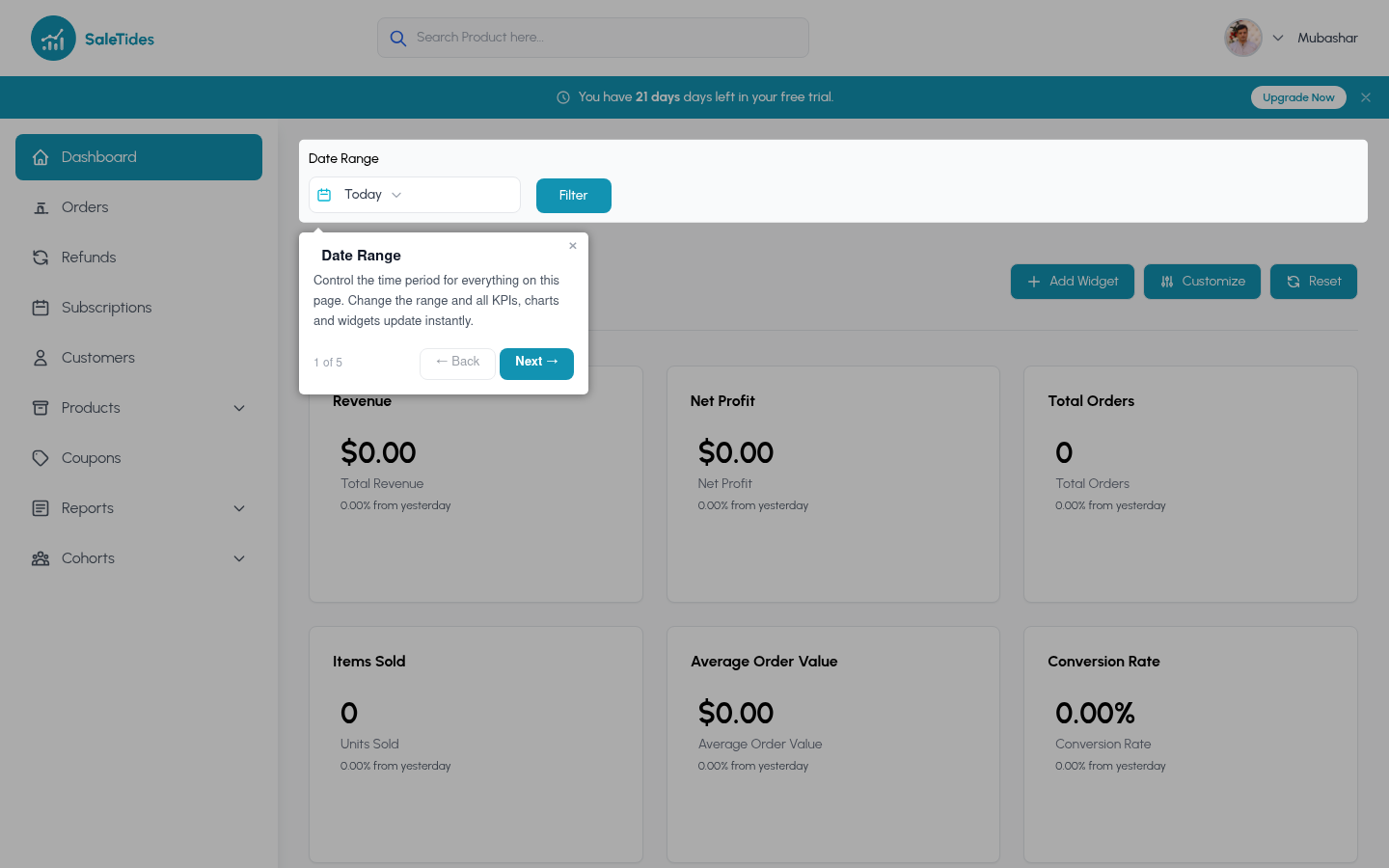
The left sidebar gives you access to every section of SaleTides.
| Section | What you'll find |
| ----------------- | ----------------------------------------------- |
| **Dashboard** | Customizable overview with widgets and charts |
| **Orders** | Full order list, details, and reports |
| **Customers** | Directory, groups, retention, and acquisition |
| **Products** | Performance, variations, and category reports |
| **Revenue** | Breakdowns by country, payment method, and more |
| **Refunds** | All refunds with trends and metrics |
| **Coupons** | Usage stats and segment reports |
| **Subscriptions** | Subscription list, MRR, and churn |
| Section | What you'll find |
| ------------------- | --------------------------------------------------- |
| **Cohorts** | Retention cohorts, LTV, and order frequency |
| **Segments** | Create and manage custom segments |
| **Abandoned Carts** | Browse and recover abandoned carts |
| **Sources** | Traffic attribution — referrers, UTM, landing pages |
| Section | What you'll find |
| ------------ | --------------------------------------- |
| **Settings** | Store settings, users, and localization |
| **Billing** | Plan, payment method, and invoices |
| **Profile** | Name, avatar, and password |
## The main dashboard
## Sidebar navigation
The left sidebar gives you access to every section of SaleTides.
| Section | What you'll find |
| ----------------- | ----------------------------------------------- |
| **Dashboard** | Customizable overview with widgets and charts |
| **Orders** | Full order list, details, and reports |
| **Customers** | Directory, groups, retention, and acquisition |
| **Products** | Performance, variations, and category reports |
| **Revenue** | Breakdowns by country, payment method, and more |
| **Refunds** | All refunds with trends and metrics |
| **Coupons** | Usage stats and segment reports |
| **Subscriptions** | Subscription list, MRR, and churn |
| Section | What you'll find |
| ------------------- | --------------------------------------------------- |
| **Cohorts** | Retention cohorts, LTV, and order frequency |
| **Segments** | Create and manage custom segments |
| **Abandoned Carts** | Browse and recover abandoned carts |
| **Sources** | Traffic attribution — referrers, UTM, landing pages |
| Section | What you'll find |
| ------------ | --------------------------------------- |
| **Settings** | Store settings, users, and localization |
| **Billing** | Plan, payment method, and invoices |
| **Profile** | Name, avatar, and password |
## The main dashboard
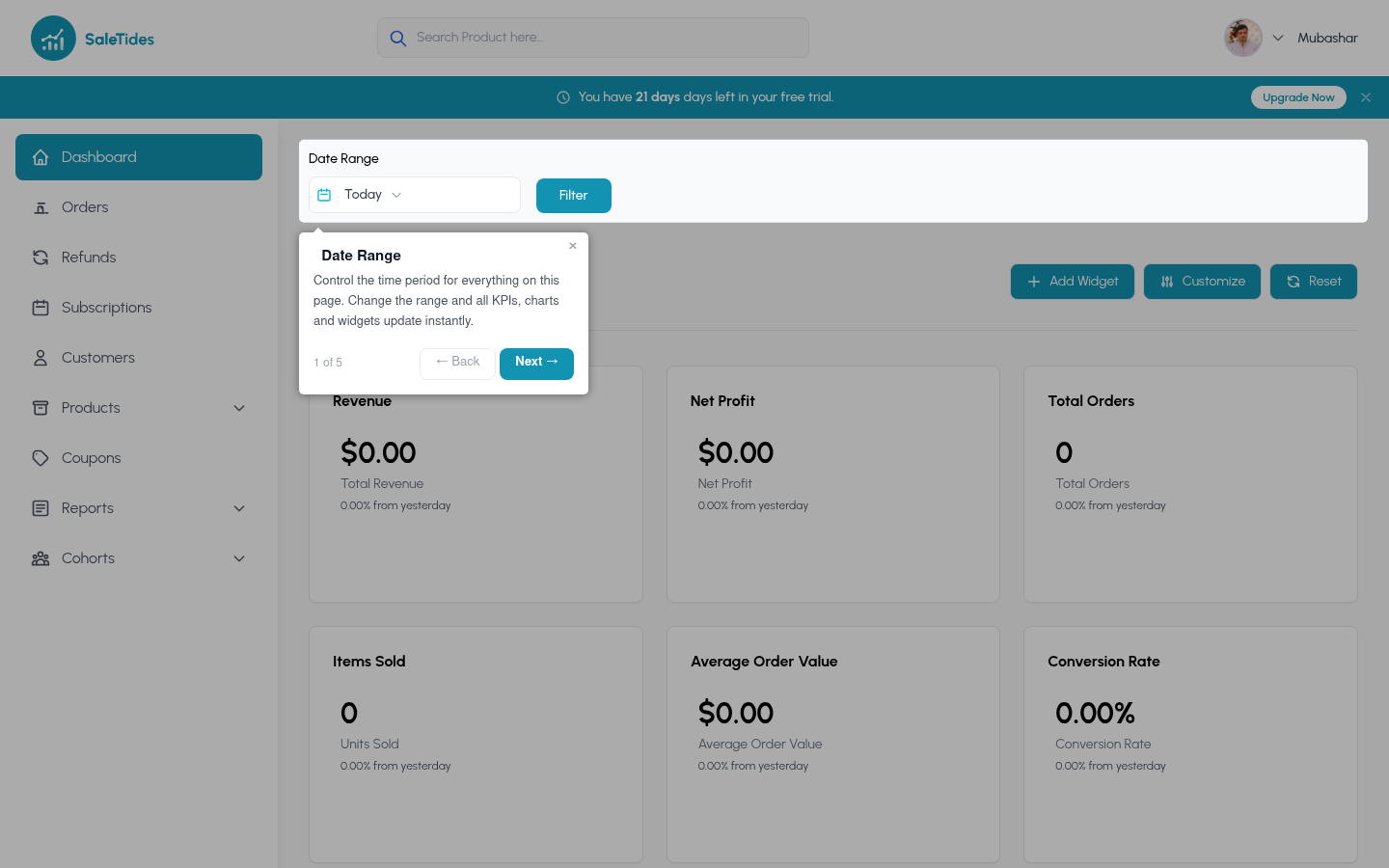 The dashboard is made up of **widgets** — individual metric cards and charts you can fully customize.
**Default widgets include:**
* Revenue over time
* Orders over time
* New vs. returning customers
* Top products by revenue
* Orders by status
* Orders by country
Click **Add Widget** to add new metrics. Drag widgets by their top edge to reorder. Click × to remove any widget.
## Date range selector
The dashboard is made up of **widgets** — individual metric cards and charts you can fully customize.
**Default widgets include:**
* Revenue over time
* Orders over time
* New vs. returning customers
* Top products by revenue
* Orders by status
* Orders by country
Click **Add Widget** to add new metrics. Drag widgets by their top edge to reorder. Click × to remove any widget.
## Date range selector
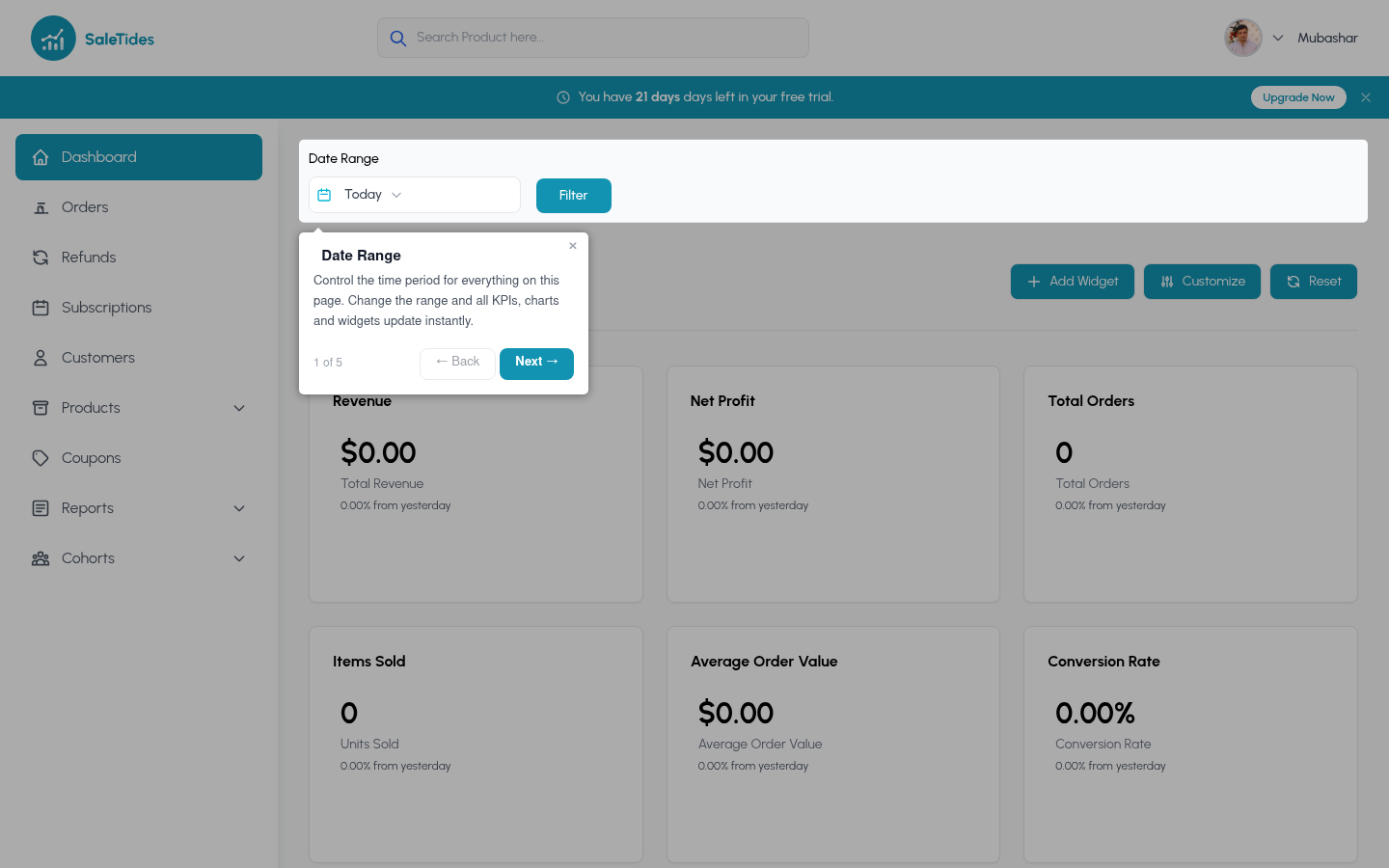 Every page has a **date range picker** in the top right. The selected range applies to all metrics and charts on that page.
| Range | Description |
| ----------------- | ------------------------------- |
| Today | Current calendar day |
| Yesterday | Previous day |
| Last 7 / 30 days | Rolling window ending today |
| This / Last month | Calendar month |
| Last 90 days | Rolling 90-day window |
| This / Last year | Full calendar year |
| All time | Your entire order history |
| Custom | Any specific start and end date |
## Filters
Most analytics pages include a filter panel. Use filters to narrow your data without creating a full segment.
* **Order status** — completed, processing, refunded, cancelled, etc.
* **Payment method** — Stripe, PayPal, bank transfer, etc.
* **Country** — billing country
* **Product** — orders containing a specific product
Apply any saved [Custom Segment](/advanced/segments/overview) to filter the entire page to a specific group — for example, "High-value UK customers" or "Orders via Stripe over \$200".
## Switching stores
If you have multiple WooCommerce stores connected, use the **store switcher** in the top navigation to move between them. Each store has its own independent data and dashboard.
Every page has a **date range picker** in the top right. The selected range applies to all metrics and charts on that page.
| Range | Description |
| ----------------- | ------------------------------- |
| Today | Current calendar day |
| Yesterday | Previous day |
| Last 7 / 30 days | Rolling window ending today |
| This / Last month | Calendar month |
| Last 90 days | Rolling 90-day window |
| This / Last year | Full calendar year |
| All time | Your entire order history |
| Custom | Any specific start and end date |
## Filters
Most analytics pages include a filter panel. Use filters to narrow your data without creating a full segment.
* **Order status** — completed, processing, refunded, cancelled, etc.
* **Payment method** — Stripe, PayPal, bank transfer, etc.
* **Country** — billing country
* **Product** — orders containing a specific product
Apply any saved [Custom Segment](/advanced/segments/overview) to filter the entire page to a specific group — for example, "High-value UK customers" or "Orders via Stripe over \$200".
## Switching stores
If you have multiple WooCommerce stores connected, use the **store switcher** in the top navigation to move between them. Each store has its own independent data and dashboard.
