

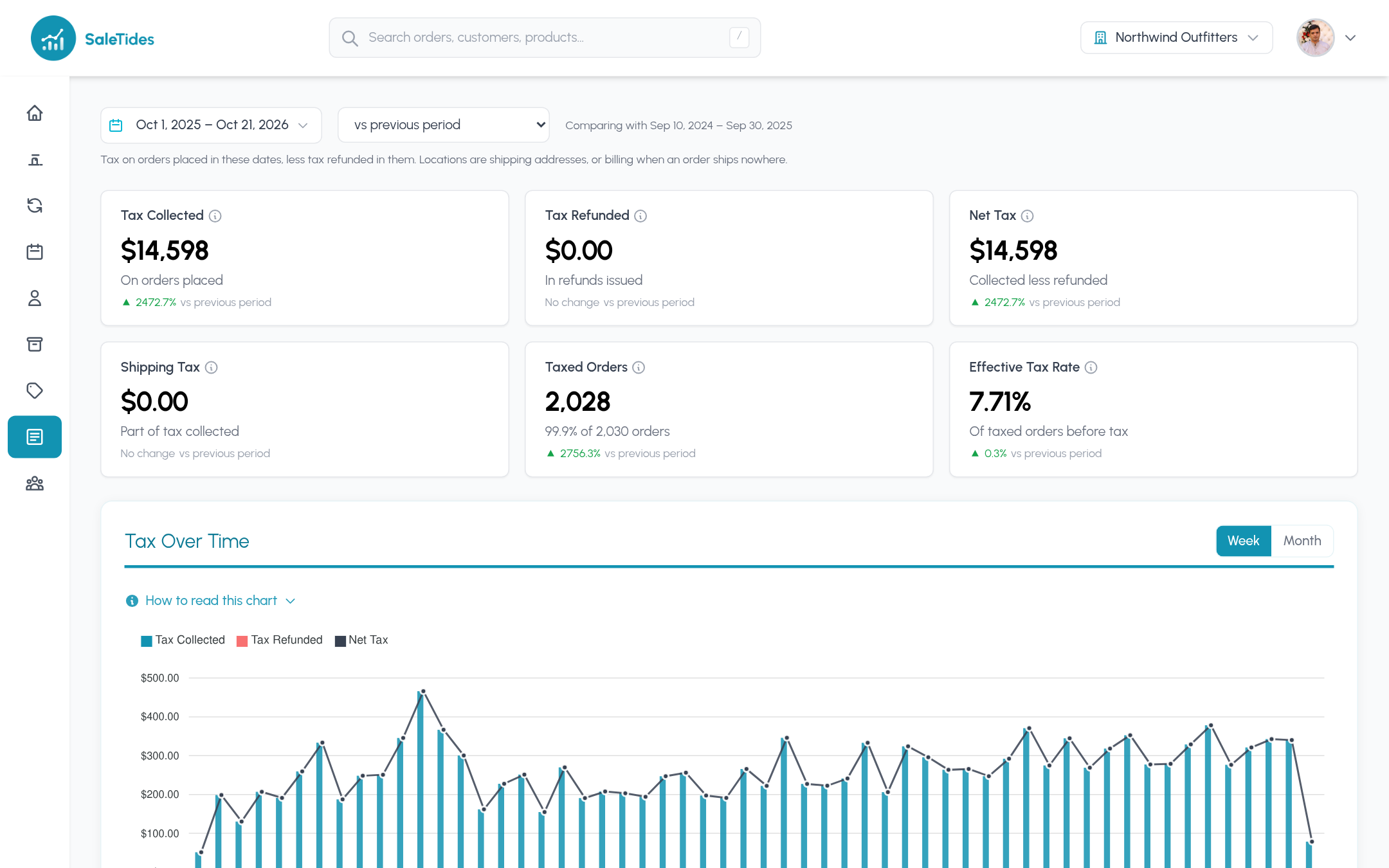
The cards
Each card compares with the previous period (or the same period last year) like the other reports.
Refunded tax counts in the month the refund was issued, not the month of the order, which is how most tax returns treat it. It’s the same rule net sales follow.
By month
One row per calendar month: orders, taxed orders, sales excluding tax, tax collected (and how much of it was on shipping), tax refunded and net tax. Export CSV downloads it with plain numbers for a spreadsheet or your accountant.By location
Net tax by country and state or region. The location is the order’s shipping address, or its billing address when it ships nowhere (digital products, collection), which is how WooCommerce works out tax by default. The Rate column is tax as a share of sales before tax, a quick check that each place was taxed at the rate you expect.By tax rate
When your orders carry WooCommerce’s tax lines, a third table splits tax by rate (for example VAT 20% or a state rate): product tax, shipping tax and total. Stores whose orders only have a tax total don’t see this table. Refunds aren’t split by rate.Filing a return
1
Pick the filing period
Set the dates to the month or quarter you’re filing.
2
Check the totals
Compare Net Tax with what you expect. An Effective Tax Rate well below your standard rate usually means tax-free products, reduced rates or orders from outside your tax region.
3
Export
Export By Month and By Location for your records or your accountant.